

Softata: ngrok update - 1
softata softata
ngrok can be used to tunnel from remote service to a local device. This is used with Softata to connect a Softata Blockly app running as an Azure service to a local Arduino Pico device. Since first used there has been an update for the free use of ngrok
Previous
About ngrok
When installed and configured you run ngrok start command locally from a command line such as:
ngrok tcp 192.168.0.11:4242
..returning :
Forwarding tcp://0.tcp.au.ngrok.io:16119 -> 192.168.0.11:4242
… where 192.168.0.11: is the local IPAddress of the Pico device and 4242 is the port of the Softata service running on it. This is displayed at the Pico’s startup such as:
Connected to wifi. Address:192.168.0.11 Port:4242
You would then use 0.tcp.au.ngrok.io and 16119 in Blockly; for example see below in the example.
Update
- ngrok Windows install
- [Microsoft Store Installer]
- Once installed you wil get a token to run in a command:
- Run the command to add your authtoken to the default ngrok.yml configuration file.
ngrok config add-authtoken 1n5Z0hTzozRcc4tJKAFwiq4aG4a_2bnR2rj16npfrXYzAbCQw
- Run the command to add your authtoken to the default ngrok.yml configuration file.
Then you can run the ngrok start command as above.
Using ngrok with Softata Blockly
It can be used to connect a local RP’ Pico W to the Azure hosted Softata Blocklyat:
- Expand the
Run Blocklylink and follow instructions there. - Further:
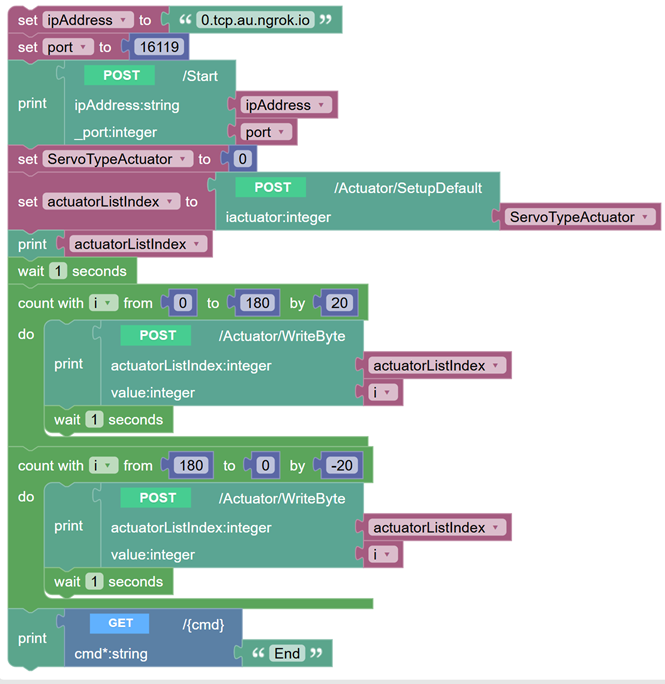
Tap and rotate phone to enlarge.
A Sample Softata Blockly app
| Topic | Subtopic | |
| Next: > | Softata | ngrok update - 2 |
| < Prev: | Jekyll-Markdown | Devops Pipeline Timely Update |
| This Category Links | ||
| Category: | Softata Index: | Softata |


